10 Best Computer Monitors for MacBook Pro (October 2026) Expert Guide
Written by Alex · Updated October 2026
Finding the right display for your MacBook Pro can transform your workflow and creative output. A high-quality monitor offers more screen real estate, better color fidelity, and improved ergonomics for long working sessions.
We evaluated ten leading models based on resolution, refresh rate, color gamut coverage, and USB-C connectivity. Our analysis focuses on how well each display integrates with macOS and supports professional tasks like editing and coding.
Each pick below highlights specific strengths and ideal use cases for different users. Note that pricing and availability can fluctuate, so verify current offers before making your final purchase decision today.
Top 3 Picks for Best Computer Monitors for MacBook Pro
Best Budget
BenQ MA270UP 27” 4K 3840×2160 Monitor for MacBook® Pro/Air, Dual USB-C, 90W Power Delivery, Mac Color Match, USB Hub, Brightness & Volume Control on Mac, Height & Tilt Adjustable Stand, P3 Color Gamut
As an Amazon Associate we earn from qualifying purchases.
Top 10 Best Computer Monitors for MacBook Pro in 2026 Compared
The following table provides a side-by-side comparison of all ten monitors to help you quickly identify the model that best fits your specific needs and budget constraints.
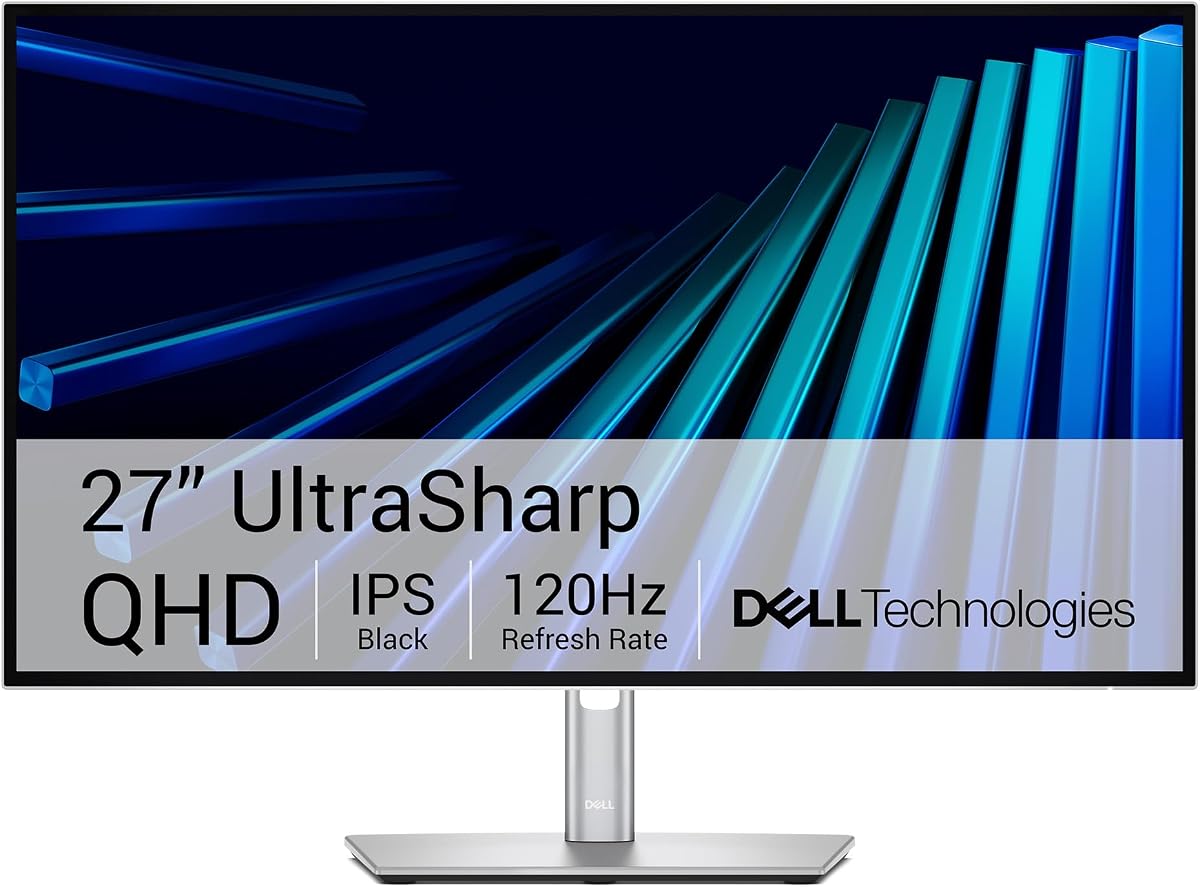
This Dell UltraSharp monitor stands out as the top choice for professionals who demand precision and versatility. With a perfect five-star rating, it delivers factory-calibrated accuracy and a robust Thunderbolt hub that simplifies desktop connectivity for MacBook users.
Pros
Factory-calibrated color accuracy
Dedicated KVM switch for two machines
Comprehensive Thunderbolt hub features
Premium design with ash finish
Excellent compatibility with macOS
Cons
Higher price point than competitors
QHD resolution instead of 4K
We may earn a commission when you buy through this link, at no additional cost to you.
The 98% Display P3 coverage ensures your photos and videos look true to life right out of the box. Its built-in KVM switch allows you to control two devices with one keyboard and mouse, making it ideal for hybrid work setups involving a personal laptop and a work device.
While the QHD resolution is slightly lower than 4K, the sharpness remains excellent for text and code. The premium price reflects the high-end features like the 120Hz refresh rate and seamless macOS integration, which justify the investment for serious creatives and developers.
Buy this if you need a reliable, high-performance display that minimizes cable clutter and maximizes productivity. It is the best all-around choice for users who want a premium Mac companion without compromising on color or connectivity.
Seamless macOS Integration
Install the Dell Display and Peripheral Manager app to fine-tune settings specifically for Mac workflows and ensure optimal performance.
Productivity Features
The KVM switch lets you easily switch between machines without unplugging cables, streamlining your daily workflow significantly.
BenQ MA270UP 27” 4K 3840×2160 Monitor for MacBook® Pro/Air, Dual USB-C, 90W Power Delivery, Mac Color Match, USB Hub, Brightness & Volume Control on Mac, Height & Tilt Adjustable Stand, P3 Color Gamut
4K resolution
Mac Color Match
90W USB-C power
Volume control keys
The BenQ MA270UP is designed specifically to complement the MacBook ecosystem. It offers a premium experience with unique features like Mac Color Match and keyboard-controlled volume that make it feel like a native Apple accessory for your desk.
Pros
Exclusive Mac color tuning
Direct keyboard volume control
Dual USB-C with 90W delivery
P3 wide color gamut
Ergonomic adjustable stand
Cons
Price is higher than average
Mac-specific features may not suit PC users
We may earn a commission when you buy through this link, at no additional cost to you.
Its calibrated P3 color gamut ensures vibrant and accurate visuals that match your MacBook screen. The dual USB-C ports provide robust connectivity, allowing you to charge your MacBook at 90W while connecting peripherals like an iPad or iPhone simultaneously.
Adjusting brightness and volume directly from your MacBook keyboard is a convenience feature that saves time during media consumption. The adjustable stand supports height, tilt, swivel, and pivot, ensuring you can find a comfortable viewing position for any task.
Choose this monitor if you want the closest possible match to your MacBook display with premium build quality. It is perfect for Mac enthusiasts who value seamless integration and high-end design over generic monitor specifications.
Mac-Specific Controls
Adjust brightness and volume directly from your MacBook keyboard without needing to reach for monitor buttons or menus.
Color Accuracy
Calibrated with BenQ's exclusive color tuning for a vibrant P3 wide color gamut that matches MacBook Pro and Air screens.
The LG 27US500-W offers an excellent entry point into the world of 4K displays for MacBook users on a budget. It combines sharp resolution with vivid colors and a sleek design that fits well in modern home office setups.
Pros
Affordable 4K price point
Vibrant 90% DCI-P3 colors
Clean borderless aesthetics
Ergonomic stand included
HDMI and DisplayPort options
Cons
Lacks USB-C power delivery
Basic stand features compared to premium
We may earn a commission when you buy through this link, at no additional cost to you.
With up to 90% DCI-P3 color gamut expression, this monitor brings brilliant color to life for content consumption and light creative work. The borderless design maximizes screen real estate and looks great on any desk without distracting bezels.
Although it does not support USB-C power delivery, the inclusion of HDMI and DisplayPort ensures flexible connectivity. The ergonomic stand allows tilt adjustments to reduce strain during long viewing sessions, maintaining comfort without extra cost.
This is the ideal choice for students or professionals needing a large, high-resolution screen without breaking the bank. It proves that you do not need to spend a fortune to get a crisp and colorful 4K experience for your laptop.
Color Spectrum
Explore HDR10 content the way it was meant to be seen with up to 90% DCI-P3 color gamut expression.
Design
The UltraFine display shows deeper blacks and vivid colors in UHD clarity with wide viewing angles.
The Dell 27 Monitor S2725QC bridges the gap between office productivity and multimedia enjoyment with its 120Hz refresh rate. It provides a smooth, tear-free experience that is beneficial for both scrolling through code and watching fast-paced videos.
Pros
120Hz smooth refresh rate
ComfortView Plus blue light reduction
Solid 65W USB-C delivery
Enhanced sound quality
Vivid sRGB colors
Cons
Response time listed as 4ms
Audio may lack deep bass
We may earn a commission when you buy through this link, at no additional cost to you.
ComfortView Plus reduces harmful blue light emissions significantly without sacrificing color accuracy, making it comfortable for all-day use. The re-engineered sound quality offers detailed audio with greater output power and a deeper frequency response than previous generations.
The 99% sRGB coverage ensures vibrant colors for standard web content and documents, while the 65W USB-C keeps your desk organized with a single cable. While the response time is slightly higher than gaming monitors, it is sufficient for general use.
Select this monitor if you value smooth motion and eye comfort in a standard 4K package. It is a strong contender for users who need a versatile display for both work and entertainment in a unified setup.
Eye Comfort
The improved ComfortView Plus reduces harmful blue light emissions to less than 35% for all-day comfort.
Connectivity
Keep your desk organized and clutter-free with a single USB-C cable providing up to 65W power delivery.
The LG 27UP850K-W stands out for its ability to turn your monitor into a multimedia hub with built-in webOS. This feature allows you to stream content directly without needing your laptop, adding a unique layer of utility to your workspace.
Pros
Built-in webOS streaming app
95% DCI-P3 color coverage
VESA DisplayHDR 400 certified
Dynamic Action Sync for gaming
Robust 90W USB-C
Cons
HDR performance is entry-level
Switch app complexity
We may earn a commission when you buy through this link, at no additional cost to you.
With VESA DisplayHDR 400 support and up to 95% DCI-P3 color gamut expression, it reproduces clear images and vibrant colors for creators. Dynamic Action Sync elevates gameplay by reducing input lag for a smoother and more responsive experience.
The monitor includes a powerful 90W USB-C port for data transfer and power delivery, ensuring your laptop stays charged. The ergonomic stand supports height, tilt, and pivot adjustments for optimal positioning and comfort throughout the day.
This model is perfect for users who want an all-in-one entertainment and work solution. Its combination of color accuracy, HDR support, and streaming capabilities makes it a versatile choice for diverse workflows.
Streaming Capabilities
Navigate smart features with ease and switch seamlessly between your PC and the built-in webOS streaming platform.
Color Gamut
Explore HDR content the way it was meant to be seen with up to 95% DCI-P3 color gamut expression.
Dell 24 Plus Monitor – S2425HSM – 23.8-inch FHD (1920×1080) 144Hz 1ms Display, 2 x 3W Speakers, HDMI Connectivity, Height/Tilt/Pivot/Swivel Adjustability, AMD FreeSync – Ash White
FHD resolution
144Hz refresh rate
1ms response time
Integrated speakers
The Dell 24 Plus Monitor is a strong choice for users prioritizing speed and smooth motion over high resolution. With a 144Hz refresh rate and 1ms response time, it delivers a tear-free viewing experience that is excellent for dynamic content and casual gaming.
Pros
Very fast 144Hz refresh
1ms Moving Picture Response Time
High customer satisfaction rating
Comprehensive height adjustment
Dual 3W integrated speakers
Cons
Lower FHD resolution
Lacks USB-C connectivity
We may earn a commission when you buy through this link, at no additional cost to you.
Its high customer satisfaction rating reflects its reliable performance and versatile adjustability. The stand supports height, tilt, pivot, and swivel, allowing you to customize the screen orientation to suit your specific comfort preferences throughout the day.
Integrated dual 3W speakers provide a wider range of frequencies for audio needs without requiring external devices. TÜV certification ensures that harmful blue light is reduced while maintaining stunning image quality for visual comfort.
Choose this if you need a responsive display for fast-paced tasks and value ergonomics. It is ideal for users who prefer a smaller, sharper screen with high refresh rates and do not require USB-C charging.
Visual Comfort
Prioritize visual comfort with this 4-star TÜV-certified display that reduces harmful blue light emissions.
Smooth Motion
A 144Hz refresh rate and 1ms Moving Picture Response Time deliver a smooth, tear-free viewing experience.
Philips 24 Inch Computer Monitor FHD 100Hz VA VESA Flicker-Free, 241V8LB
FHD VA panel
100Hz refresh rate
Flicker-free tech
VESA compliant
The Philips 24 Inch Monitor offers remarkable value with crisp visuals and features that support long reading sessions. Its FHD resolution is perfect for general office tasks, and the VA panel provides brighter whites and deeper blacks for better contrast.
Pros
Highly affordable price
100Hz refresh rate for FHD
VA panel deep contrast
Bezel-free sides design
EasyRead mode available
Cons
VA panel response time
Standard FHD resolution
We may earn a commission when you buy through this link, at no additional cost to you.
The design is virtually bezel-free on three sides, making the screen look bigger and supporting seamless multi-monitor setups. EasyRead mode provides a paper-like experience for viewing lengthy documents, which reduces eye strain for busy office workers.
Flicker-free technology continuously removes tiring screen flicker, while the 100Hz refresh rate ensures smoother motion than standard monitors. This makes it a reliable choice for users who want a compact and budget-friendly display without compromising basic comfort.
This monitor is ideal for students or remote workers needing a secondary screen. Its combination of contrast, refresh rate, and reading optimization makes it a practical and economical addition to any desk setup.
Contrast Quality
The VA panel produces brighter whites and deeper blacks for true-to-life images and more gradients.
Design
The sleek monitor is virtually bezel-free on three sides, allowing for seamless multi-monitor setups.
The Dell UltraSharp 27 Thunderbolt Hub Monitor offers a refined experience for developers and designers. Its QHD resolution provides a crisp canvas for code and design work, while the 120Hz refresh rate ensures smooth transitions between windows.
Pros
Perfect color accuracy
Premium build finish
Built-in KVM switch
Thunderbolt connectivity
Excellent macOS support
Cons
Premium pricing
QHD not 4K
We may earn a commission when you buy through this link, at no additional cost to you.
Deep blacks and rich contrast make every detail sharper, helping you spot small errors in your work. The light ash finish and virtually borderless screen bring a clean look to any space, keeping you productive and ready to lead from anywhere.
Built-in KVM functionality allows you to switch between machines easily with a single keyboard and mouse. This feature saves time and clutter, making it an essential tool for users who manage multiple systems daily.
Select this monitor if you value precision and a seamless multi-device workflow. It is the ultimate choice for professionals who need high quality and reliability in a premium Thunderbolt display.
Workflow Efficiency
Spread out your code and browser across a crisp canvas and switch between two machines using a single keyboard and mouse.
Visual Clarity
Deep blacks and rich contrast make every detail sharper and every transition seamless for a refined look.
The BenQ PD2706QN is engineered for creators who require consistent colors across different displays. With 95% P3 and 100% sRGB coverage and factory calibration, it ensures your photos and videos look true to life immediately.
Pros
Factory-calibrated accuracy
ICCsync profile management
Anti-glare Nano Matte tech
90W single cable charging
Daisy chain capability
Cons
Higher price than standard
No 4K option
We may earn a commission when you buy through this link, at no additional cost to you.
The Nano Matte panel diffuses ambient light to reduce glare and preserve color accuracy during long design sessions. ICCsync automatically matches ICC profiles between your Mac and monitor when switching modes, ensuring seamless color consistency.
A single USB-C cable synchronizes images, videos, and data while charging your Mac at 90W. The ergonomic design supports tilt, pivot, swivel, and height adjustments to maintain a comfortable environment for productivity.
This monitor is ideal for professionals needing reliable color uniformity and glare reduction. Its balance of connectivity and visual fidelity makes it a top tool for serious design and photography work.
Color Consistency
ICCsync automatically matches and syncs ICC profiles between your Mac and BenQ monitor when switching color modes.
Anti-Glare Tech
The Nano Matte panel diffuses ambient light to preserve color accuracy and contrast while reducing glare.
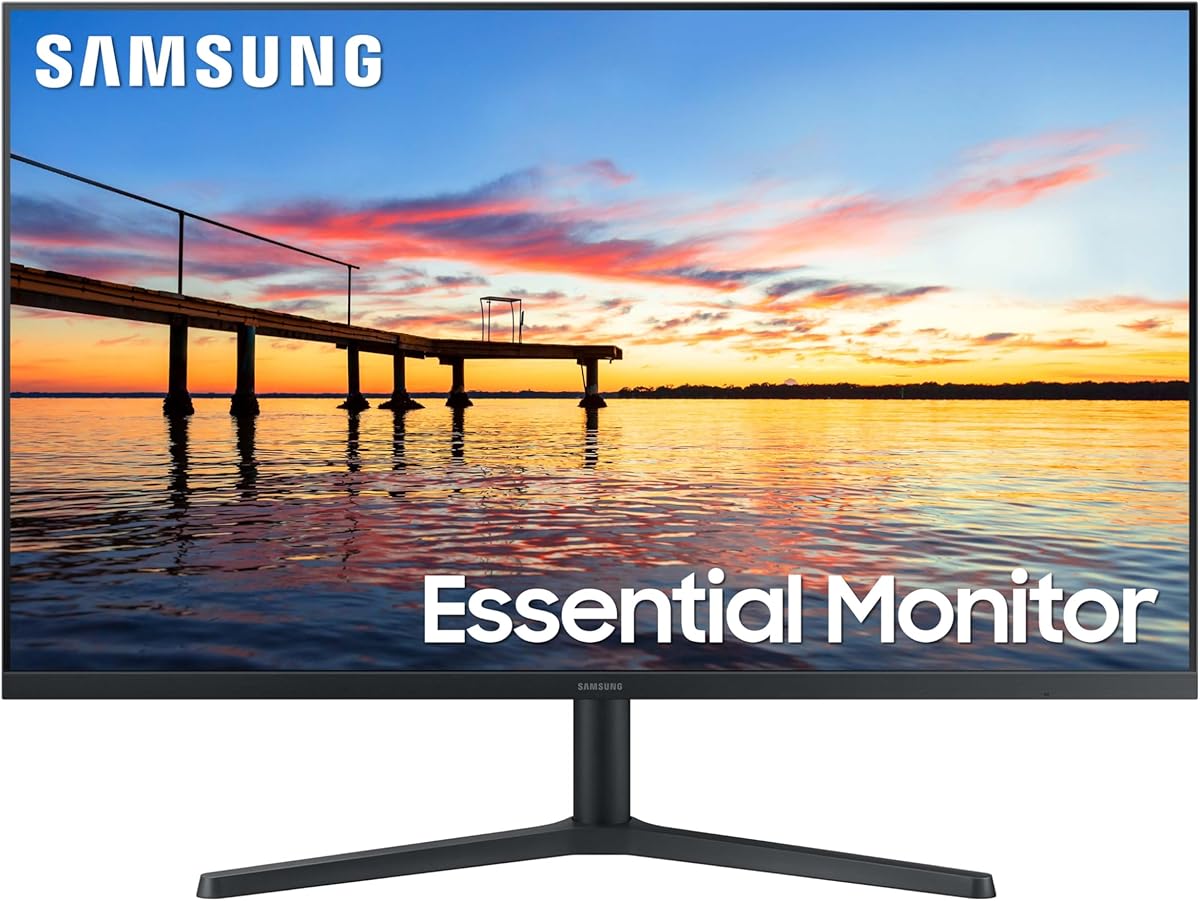
The Samsung 32 Flat Computer Monitor offers a spacious viewing area with a clean, modern aesthetic. Its three-sided borderless design makes it line up seamlessly in multi-monitor setups, providing a virtually gapless view without distractions.
Pros
Large 32-inch display
Borderless multi-monitor setup
AMD FreeSync tech
Flicker Free technology
Affordable price point
Cons
75Hz is standard refresh
No USB-C support
We may earn a commission when you buy through this link, at no additional cost to you.
AMD FreeSync keeps your monitor and graphics card refresh rates in sync to reduce image tearing during movies or games. Eye Saver Mode minimizes emitted blue light while flicker-free technology removes irritating screen flicker for less eye strain.
The 75Hz refresh rate ensures smooth visual fluidity for general tasks, and game mode instantly gives you the edge for gaming. It balances size and performance well for users who need extra screen space on a budget.
Choose this if you want a large display for multitasking or casual gaming without breaking the bank. It is a practical choice for users prioritizing screen real estate and eye comfort over high refresh rates.
Multi-Monitor Design
The three-sided borderless display brings a clean aesthetic and line up seamlessly for a virtually gapless view.
Eye Care
Eye Saver Mode minimizes emitted blue light while flicker-free technology removes tiring screen flicker.
We may earn a commission when you buy through this link, at no additional cost to you.
Buying Guide – How to Choose the Best Computer Monitors for MacBook Pro
Selecting the right monitor for your MacBook Pro involves considering several key factors that impact your workflow and visual comfort.
Resolution and Screen Size
Resolution determines how much information you can fit on the screen. 4K offers sharp text and image detail, while QHD provides a balance of clarity and performance. Screen size ranges from 24 to 32 inches, with larger sizes improving productivity but requiring more desk space.
For most MacBook users, a 27-inch 4K monitor offers the best balance of workspace and pixel density.
Color Gamut and Accuracy
Color accuracy is critical for creative work. Look for high DCI-P3 or sRGB coverage percentages to ensure vibrant and true-to-life colors. Factory calibration and tools like ICCsync help maintain consistency across multiple displays.
Prioritize monitors with at least 95% DCI-P3 coverage if you edit photos or videos professionally.
Connectivity and USB-C
MacBook Pro models rely heavily on USB-C and Thunderbolt ports. A monitor with USB-C power delivery can charge your laptop while transferring video and data through a single cable. Check wattage to ensure it meets your MacBook's charging needs.
Choose a monitor with 65W or higher USB-C power delivery for a clean and efficient single-cable setup.
Refresh Rate and Response Time
Refresh rate affects how smooth motion looks on screen. Standard office tasks do not need high rates, but 100Hz or 120Hz enhances scrolling and video playback. Response time impacts ghosting and input lag, important for gaming.
For general work, 60Hz to 100Hz is sufficient, while gamers should look for 120Hz and lower response times.
Ergonomics and Stand Adjustability
A good stand should allow height, tilt, swivel, and pivot adjustments to reduce neck strain. Adjustable monitors help you find the optimal viewing position, which is essential for long working sessions.
Ensure the monitor offers full ergonomic adjustments to maintain good posture during daily use.
Special Features and Integrations
Some monitors offer Mac-specific features like volume control or color matching. KVM switches and streaming apps add versatility. These extras can improve productivity but may come at a higher cost.
Decide if specialized features are worth the extra cost for your specific workflow needs.
Budget and Value
Monitors range from budget-friendly to premium. Determine your priorities to find the best value. High-end models offer better color and connectivity, while budget options cover basic needs well.
Set a budget and compare specs to find the model that offers the features you need most.
Eye Comfort Technology
Prolonged screen time can cause eye fatigue. Features like Flicker-Free technology and Low Blue Light modes help reduce strain. Certifications like TÜV confirm these claims.
Look for certified eye comfort features to protect your vision during extended work sessions.
How to Use and Care for Your Computer Monitors for MacBook Pro
Connect your monitor using the appropriate cable such as USB-C or HDMI. For USB-C, plug one end into your MacBook and the other into the monitor to get video and power in one step.
Configure display settings on your Mac by going to System Preferences. You can adjust resolution, scaling, and arrangement to ensure the best view. If using multiple monitors, choose how you want your workspace to be shared.
Clean your screen gently with a soft microfiber cloth to avoid scratches. Avoid chemical cleaners that can damage coatings. Adjust brightness and blue light settings to match your environment and reduce eye strain.
Frequently Asked Questions
Which USB-C wattage do I need for a MacBook Pro?
Most MacBook Pro models require at least 65W charging power. Choosing a monitor with 90W USB-C ensures you can charge your laptop while using it as a display. This prevents your battery from draining during heavy tasks like video editing.
Does a monitor need to be 4K for a MacBook Pro?
No, a 4K monitor is not strictly necessary. QHD displays offer excellent sharpness and are often more affordable. However, 4K provides the most space for multitasking and matches the high-resolution Retina displays on MacBooks better.
What is the benefit of DCI-P3 color gamut?
DCI-P3 covers a wider range of colors than standard sRGB. For creative work, this means more accurate and vibrant images. Most MacBook screens use P3, so matching that gamut on an external monitor ensures color consistency across devices.
Can I use a Windows monitor with my MacBook?
Yes, any monitor with HDMI or USB-C works with a MacBook. However, Windows monitors may lack Mac-specific features like volume controls or color matching. Basic functionality like video output and charging will work perfectly with standard connections.
Is it worth getting a Thunderbolt monitor for a MacBook?
Thunderbolt monitors offer faster data transfer and more power than USB-C. They are ideal for users needing high bandwidth and multiple displays. If you use external drives or edit 4K video, the investment in Thunderbolt is often worth it.
How does refresh rate affect productivity?
Higher refresh rates make scrolling and window dragging smoother and less jittery. While not critical for all tasks, 100Hz or higher can reduce eye fatigue and improve comfort. It is especially noticeable when working with dynamic content.
Final Thoughts on Choosing the Best Computer Monitors for MacBook Pro
We reviewed ten top monitors ranging from budget 4K options to high-end Thunderbolt models. The Dell UltraSharp 27 Thunderbolt Hub stands out as the best overall for its color accuracy and versatility.
Consider your primary needs such as color accuracy for design or high refresh rates for multimedia when making your choice. Connectivity options like USB-C power delivery are essential for keeping your workspace clean and efficient.
Prices and availability change frequently so check current listings before purchasing. Verify that the model you choose meets your specific requirements for resolution, size, and ergonomic adjustments.