Bootable USB Drive for Windows 11
4.0Editor score
No TPM requirement needed
Simple installer and recovery tool
Handmade and tested in Texas
Discover the top bootable Windows 11 USB drives for easy installation and repair. This guide compares features, compatibility, and recovery tools to help you
Finding a reliable bootable Windows 11 USB drive is essential for system recovery and installation. These tools simplify the process of reinstalling or fixing Windows without needing advanced technical skills.
We evaluated ten top-rated USB drives based on compatibility, included tools, and ease of use. Our analysis focuses on drives that support UEFI and legacy systems while bypassing common hardware restrictions.
Each pick highlights key features like network driver support, password reset tools, and data recovery options. Remember that product availability and pricing can change, so verify details before purchasing online.
4.0Editor score

4.3Editor score

4.2Editor score
This side-by-side comparison highlights the unique strengths of each bootable USB drive. From storage capacity to specialized repair tools, we break down what makes each option stand out for different user needs.


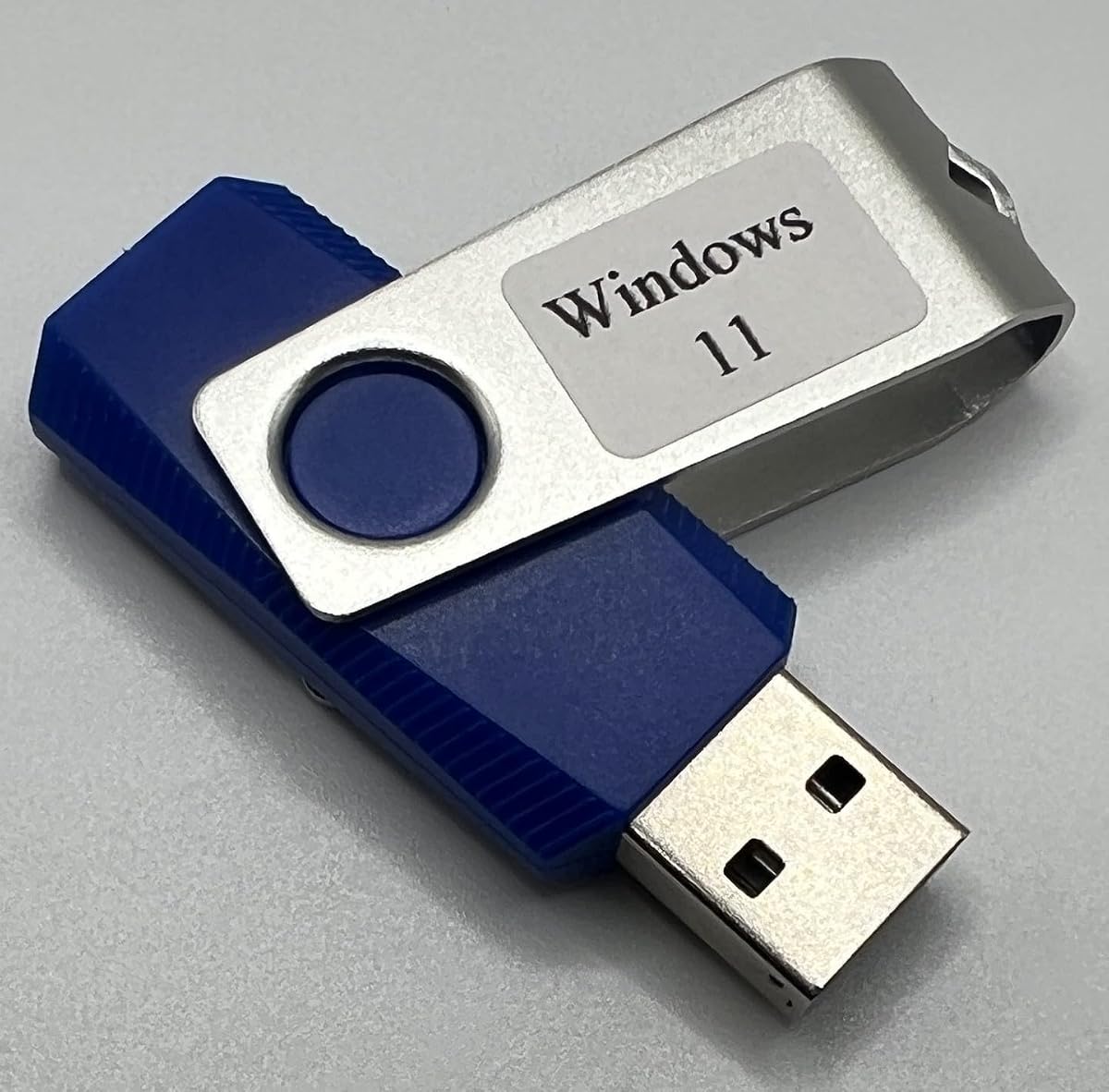


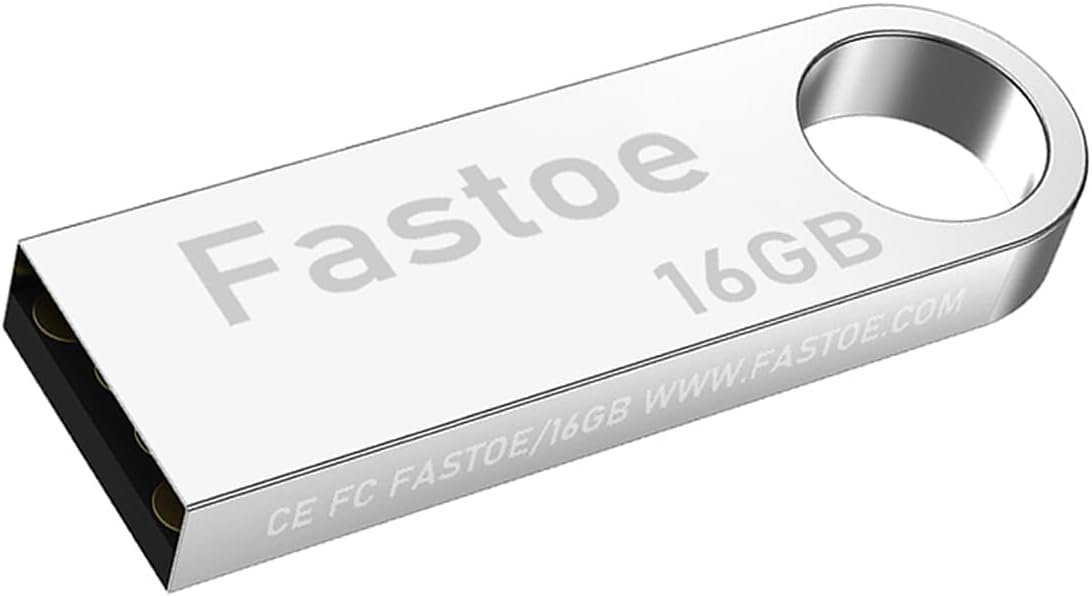
This 64GB bootable USB drive stands out as a comprehensive solution for installing or repairing Windows 11 and older versions. With a solid 4.3 rating, it offers a wide range of utilities including network drivers and data recovery tools that many competitors lack.
We may earn a commission when you buy through this link, at no additional cost to you.
The drive supports both UEFI and legacy boot modes, making it versatile for various computer configurations. Users appreciate the inclusion of network drivers for WiFi and LAN, which is crucial when setting up a fresh Windows installation without internet access.
While the need to disable Secure Boot in BIOS might be a slight hurdle for beginners, the included video tutorials simplify the process. It is important to note that this tool is designed for reinstallation, meaning existing Windows systems cannot be kept during the repair process.
For anyone seeking a reliable all-in-one repair and install tool, this USB drive is an excellent choice. Its combination of storage, compatibility, and included utilities makes it a top recommendation for both home users and technicians.
The inclusion of network drivers ensures you can connect to WiFi or LAN immediately after installation.
Support for both UEFI and Legacy modes means it works with a wide range of hardware.
We may earn a commission when you buy through this link, at no additional cost to you.
This budget-friendly option provides a straightforward way to install Windows 11 without the need for TPM hardware checks. With a 4.0 rating, it is designed for users who need a basic installer and recovery tool without extra bulk or complex features.
We may earn a commission when you buy through this link, at no additional cost to you.
The drive is small but effective, focusing on core functionality like system setup and repair. It supports both UEFI and legacy boot methods, ensuring compatibility with most modern and older PCs. The fact that it is handmade and tested in Texas adds a touch of trust for buyers.
While it is an excellent tool for software-related issues, it is not intended for fixing hardware failures like bad RAM or motherboards. Users should ensure their PC can power on and access BIOS before purchasing this drive to avoid frustration.
For those looking for a simple and cost-effective solution to bypass TPM requirements and install Windows 11, this USB drive is a strong contender. It offers essential functionality without unnecessary extras.
No TPM requirement means you can install Windows 11 on older hardware without compatibility errors.
Designed specifically for software installation and recovery rather than hardware diagnostics.
We may earn a commission when you buy through this link, at no additional cost to you.
This 32GB drive offers a premium balance of storage and utility, making it ideal for advanced users who need partitioning and data backup tools. With a 4.2 rating, it supports the latest Windows versions and includes essential network drivers for a smooth setup process.
We may earn a commission when you buy through this link, at no additional cost to you.
The inclusion of hard drive partitioning and data recovery features sets it apart from basic installers. Users can access and backup hard drive data to keep their files safe during the recovery process. It supports all major PC brands and works with both UEFI and legacy boot systems.
As with many drives in this category, disabling Secure Boot in BIOS may be necessary, and the tool is intended for reinstallation rather than keeping existing systems. However, the added value of data management tools justifies its position as a premium option.
If you need a reliable drive that combines installation with data safety and partitioning capabilities, this is an excellent choice. It is particularly useful for technicians or users who need to manage storage layouts during recovery.
Built-in tools allow you to access and backup important files before reinstalling Windows.
Hard drive partitioning allows you to organize storage space effectively during setup.
We may earn a commission when you buy through this link, at no additional cost to you.
This 64GB drive is a robust tool for users who need to reset Windows passwords or troubleshoot startup issues. With a 4.2 rating, it includes a comprehensive WinPE suite and network drivers, making it highly versatile for both installation and recovery tasks.
We may earn a commission when you buy through this link, at no additional cost to you.
The password reset feature is a standout capability for those locked out of their systems. Additionally, the drive supports hardware testing and data backup, providing a full range of maintenance utilities. Video tutorials are included to help beginners navigate the boot process and installation steps.
While it is a powerful tool, it does not support the automatic repair option, so users must be prepared to reinstall Windows to fix failures. Secure Boot may also need to be disabled in BIOS for compatibility with newer computers.
For anyone needing a versatile repair and password reset tool, this USB drive offers excellent value. Its wide compatibility and included utilities make it a reliable choice for maintaining PC health.
The ability to reset Windows passwords helps regain access to locked systems quickly.
Includes data backup, partitioning, and hardware testing for complete PC care.
We may earn a commission when you buy through this link, at no additional cost to you.
This unique USB drive stands out by working with Secure Boot enabled, eliminating the need to change BIOS settings for many users. While it has an N/A rating due to being newer, it promises to download the latest official Windows directly from Microsoft without outdated ISOs.
We may earn a commission when you buy through this link, at no additional cost to you.
The drive is designed for 64-bit systems with UEFI BIOS, which covers most PCs from 2013 and newer. It offers clear on-screen instructions and US-based support via live chat or email, which is a rare and valuable feature for buyers seeking assistance.
However, it does not support Legacy BIOS, limiting its use on older hardware. Additionally, a Windows product key is not included, so users must have their own license or purchase one separately for activation.
For modern PCs with Secure Boot enabled, this drive offers a seamless installation experience. Its focus on official Microsoft downloads and real support makes it a trustworthy option for secure installations.
Unlike many competitors, this drive works without disabling Secure Boot in the BIOS.
Downloads genuine Windows directly from Microsoft to ensure safety and authenticity.
We may earn a commission when you buy through this link, at no additional cost to you.
This 16GB USB drive is designed specifically for Windows 11 recovery and repair, offering a range of tools to resolve common system issues. With a 3.9 rating, it provides multiple recovery options including system repair, fresh installation, and data recovery tools for comprehensive support.
We may earn a commission when you buy through this link, at no additional cost to you.
The drive is UEFI-compliant, ensuring proper booting across various computer makes and models with 64-bit architecture. It also includes detailed instructions for system recovery and proper boot setup, which can be very helpful for users new to the process.
While it focuses primarily on Windows 11, its range of functionality makes it a practical tool for troubleshooting slow performance, boot failures, or blue screens. However, the lower rating suggests users may need to rely more heavily on the provided documentation.
For Windows 11 users needing a straightforward recovery solution, this drive offers essential tools and clear guidance. It is a useful addition to your IT toolkit for handling common system failures.
Includes multiple recovery options from system repair to fresh installation.
Detailed guides help you set up boot and recovery options correctly.
We may earn a commission when you buy through this link, at no additional cost to you.
This 64GB drive stands out by including a license key for installation, which can simplify the activation process for users. With a 3.4 rating, it provides tools for password resets, network connectivity, and hardware testing, making it a versatile option for troubleshooting.
We may earn a commission when you buy through this link, at no additional cost to you.
The drive includes video instructions and support available to help users through the setup process. It supports both Windows 10 and 11 Pro/Home versions and includes network drivers for WiFi and LAN to ensure you can get online after installation.
Security Boot may need to be temporarily disabled on newer systems, and the lower rating suggests some users might face challenges. However, the inclusion of a key and extensive tools makes it a strong contender for those needing activation support.
For users who want an all-in-one solution with a license key and recovery tools, this drive offers significant value. Its high-speed storage and included support are notable advantages for complex installations.
Includes one activation key to help streamline the installation and activation process.
Video instructions are provided to help beginners navigate the installation steps.
We may earn a commission when you buy through this link, at no additional cost to you.
This 64GB USB installer combines Windows installation media with a WinPE repair suite, offering a complete rescue solution in one device. With a 4.2 rating, it supports Windows 11, 10, and 7 Home and Pro editions, making it highly versatile for various system needs.
We may earn a commission when you buy through this link, at no additional cost to you.
The WinPE utility suite allows users to backup files, troubleshoot startup problems, and recover passwords without needing external tools. A video tutorial is included to guide you through the boot process, and full instructions are provided in the packaging.
While it requires disabling Secure Boot on some systems, its all-in-one nature simplifies troubleshooting without multiple downloads. The availability of technical support and printable instructions adds extra convenience for users.
For those seeking a complete rescue and installation solution, this drive is a reliable and comprehensive choice. Its broad compatibility and included utility suite make it a great addition to any toolkit.
WinPE tools allow for system backup, password recovery, and troubleshooting from a single drive.
Includes both video tutorials and printed instructions to assist with setup and recovery.
We may earn a commission when you buy through this link, at no additional cost to you.
This drive offers a unique set of 30 bootable tools, providing extensive options for repair and recovery across multiple Windows versions. With a 4.0 rating, it is designed for users who want a versatile solution to troubleshoot startup failures, boot errors, and system crashes.
We may earn a commission when you buy through this link, at no additional cost to you.
The drive supports both UEFI and Legacy BIOS USB booting, ensuring compatibility with a wide range of computers. It is ready to use out of the box, eliminating the need to download large system files or create bootable media yourself.
While it is excellent for maintenance and repair, a Windows license key is not included, so users must have an existing license for activation. It is also useful for refreshing older computers before deciding on replacement.
For technicians and enthusiasts who need a wide range of tools in one device, this drive is an excellent resource. Its readiness and compatibility make it a valuable asset for PC maintenance.
30 different tools offer comprehensive options for diagnosis and repair of various issues.
Ready to use bootable media eliminates the need for downloads or complex creation steps.
We may earn a commission when you buy through this link, at no additional cost to you.
This 16GB USB flash drive offers a simple and reliable way to install Windows 11 Pro or Home editions. With a 3.8 rating, it is built with high-quality components and comes with a user guide to assist users through the installation process.
We may earn a commission when you buy through this link, at no additional cost to you.
The drive is plug and play ready, making it convenient for users who want a straightforward solution. It is compatible with all PC brands including Dell, HP, Lenovo, and others, and is free from viruses or spyware for safety.
While the storage capacity is limited compared to other options, it is sufficient for installation and recovery tasks. The availability of online technical support adds an extra layer of assistance for users facing issues.
For those looking for a simple and safe installation tool, this drive provides a hassle-free experience. Its broad compatibility and clean software make it a solid choice for basic Windows 11 setup.
Plug and play design makes installation simple and quick for all users.
Official version with no viruses or spyware ensures a safe installation process.
We may earn a commission when you buy through this link, at no additional cost to you.
Selecting the right bootable USB drive requires understanding your specific needs and system compatibility. This guide breaks down the key factors to consider for a successful installation or repair.
Storage capacity determines how much software and utility data the drive can hold. Drives range from 8GB to 64GB, with larger capacities allowing for more comprehensive toolsets like network drivers and partitioning utilities.
Choose at least 32GB if you need extensive recovery tools; otherwise, 16GB may suffice for basic installation tasks.
Ensure the drive supports the Windows version you intend to install. Most modern drives support Windows 11 and 10, but some also include older versions like Windows 8.1 or 7 for compatibility with legacy hardware.
Check the product description to confirm support for your specific OS edition and architecture.
Boot compatibility refers to whether the drive works with UEFI, Legacy BIOS, or both. Modern computers typically use UEFI, while older systems may require Legacy BIOS support. Drives supporting both offer more versatility.
Verify your computer's BIOS type and choose a drive that matches to avoid boot failures.
Many bootable USB drives come with additional tools like password resets, data recovery, and network drivers. These utilities can save you time and money by providing essential maintenance features without extra downloads.
Look for drives that include tools relevant to your needs, such as network drivers for connectivity or data backup for file safety.
Windows 11 requires a TPM module, but many drives offer the ability to bypass this requirement for older hardware. This feature is critical if your computer does not meet the official system requirements for Windows 11.
Confirm that the drive explicitly states it supports installation without TPM to ensure compatibility.
Security is paramount when using bootable media. Reliable drives are scanned for viruses and malware to ensure safe installation. Avoid drives without security assurances to prevent system compromise.
Choose drives that explicitly mention virus-free installation media and official Windows sources.
Good documentation and customer support can make a difference when troubleshooting installation issues. Look for products that include video tutorials, printed guides, or access to technical support.
Prioritize drives with clear instructions to simplify the process for beginners or non-technical users.
Secure Boot is a BIOS setting that can block bootable drives unless configured properly. Some drives work with Secure Boot enabled, while others require it to be disabled temporarily.
Consider your comfort level with BIOS settings; drives that work with Secure Boot enabled are more user-friendly for most people.
To begin using your bootable USB drive, insert it into an available USB port on your computer. Restart your machine and access the boot menu by pressing the designated key during startup, such as F12, F10, or Esc.
Select the USB drive from the boot menu to launch the installation or recovery environment. Follow the on-screen instructions to proceed with Windows installation, repair, or data recovery tasks.
After use, safely eject the USB drive by right-clicking and selecting 'Eject' or by unplugging it after shutdown. Store the drive in a cool, dry place to prevent physical damage or data loss.
Most bootable USB drives do not include a Windows license key. You will need to enter your own existing key or activate Windows later using digital entitlement or a purchased license. Some specific drives include a key, but this is rare.
No, these drives are designed for Windows PCs and will not work on Apple-silicon Macs or Intel Macs. The architecture and boot protocols are incompatible with macOS. You need separate tools for Mac system recovery or installation.
Disabling Secure Boot temporarily is generally safe and reversible via BIOS settings. However, be cautious about re-enabling it after installation to maintain system security. Only disable it if the drive requires it for booting.
No, these bootable USB drives are designed for x64 architecture and do not support ARM or Snapdragon PCs. Ensure your computer uses a standard Intel or AMD processor before purchasing any Windows 11 bootable drive.
Some drives include data recovery tools that allow you to access and backup files from a failing drive. However, if the hardware itself is dead or not detected, recovery may not be possible. Check the product's recovery capabilities carefully.
Most bootable drives are designed for fresh installations or full system repairs, meaning existing Windows files may be overwritten. Back up your important data before starting the process to avoid data loss during installation.
These drives typically contain a specific Windows version released at the time of manufacture. You cannot update the version on the drive itself; instead, the installation process may download the latest updates from Microsoft during setup.
Yes, most bootable USB drives are reusable. After installation, the drive remains functional for storage or can be reformatted to create other bootable media. Keep the included utilities accessible for future troubleshooting if needed.
We have explored ten top-rated bootable USB drives that offer reliable solutions for Windows 11 installation and recovery. Whether you need basic install tools or advanced utilities like password resets and data backup, each option provides distinct benefits for different user needs.
When making your choice, prioritize compatibility with your system's boot mode and include the necessary tools for your repair or installation tasks. Consider security features, support quality, and whether the drive supports your specific hardware constraints like TPM.
Remember that prices and availability can change over time, so verify current details before purchasing. Investing in a quality bootable USB drive ensures you are prepared for unexpected system issues and can maintain your PC effectively.